For this tutorial I made just to share to you all, I hope you liked my work.
Final Image
STEP 1
Create a new file, click the fie-new, set the paper size as below.
(Buat file baru, klik fie-new, atur ukuran kertas seperti di bawah ini).
STEP 2
Use the Gradient tool, with a color according to your wishes.
(Gunakan Gradient tool, dengan warna sesuai kemauan anda).


STEP 3
Copy the layer and choose filter - render - differnce cloud, change the Normal to Color dodge.
(Copy layer dan pilih filter - render - differnce cloud, ubah Normal menjadi Color dodge).
STEP 4
Make the text that you want to do, Change text to normal on csreen.
(Buatlah teks yang anda ingin kan, Ubah normal pada teks menjadi csreen).
Final Image

Tampilkan postingan dengan label typography. Tampilkan semua postingan
Tampilkan postingan dengan label typography. Tampilkan semua postingan
Selasa, 11 Mei 2010
MAKE YOUR OWN WALPAPER by BayuIdea
TUTORIAL GRAPHIC DESIGN WITH ADOBE PHOTOSHOP BEAUTIFUL TEXT by BayuIdea
I made this tutorial, just purely to share the knowledge to design lovers, I hope this tutorial can help you in learning design.
Final Image


STEP 1
Open a new file, click open - new
And set as above.(Buka file baru, klik open - new, Dan atur seperti di atas).
STEP 2
Make a new layer, and colored black.(Buatlah layer baru, dan bewarna hitam).
STEP 3
Then, use the pen tool (p), and shape as above.(Lalu, gunakan pen tool (p), dan bentuk seperti di atas).
STEP 4

Then click phats, right click select stroke phats, and the result will be like this.
(Kemudian klik phats, klik kanan pilih stroke phats, dan hasilnya akan seperti ini).
STEP 5
The next step, copy the new layer we created earlier, and the modification itself into the shape you want.
by using Ctrl + T, to rotate the image according to the position you desire.
(Langkah selanjutnya, copy layer yang baru kita buat tadi, dan modifikasi sendiri menjadi bentuk yang anda inginkan. dengan menggunakan Ctrl + T ,
untuk memutar gambar sesuai posisi keinginan anda).
STEP 6


After that, do not forget to incorporate the layer layers line that we make, having joined then we copy the layer,
after the copy, its bottom layer at the click, then select Filter-Blur-Blur Grausian.
Then after the blur, Merge between the layers, which are in the same blur and layer on top.
(Setelah itu, jangan lupa menggabungkan layer layer garis yang kita buat,
setelah tergabung barulah kita mengcopy layer tersebut, setelah di copy,
layer bawah nya di klik, lalu pilih Filter-Blur-Grausian Blur.
Lalu setelah di blur, Gabungkan antara layer yang di blur dan layer yang sama di atasnya).
STEP 7

Paint the results we have made earlier, using a round brush, with color according to your wishes,
make a new layer before coloring, and if it has been filled with color, change the Normal to Overlay.
It will obtain the results as above.
(Warnai hasil yang telah kita buat tadi, dengan menggunakan brush bulat,
dengan warna sesuai keinginan anda, buatlah layer baru sebelum mewarnai,
lalu jika telah penuh dengan warna, ubah Normal menjadi Overlay.
Maka akan di dapatkan hasil seperti di atas).
STEP 8


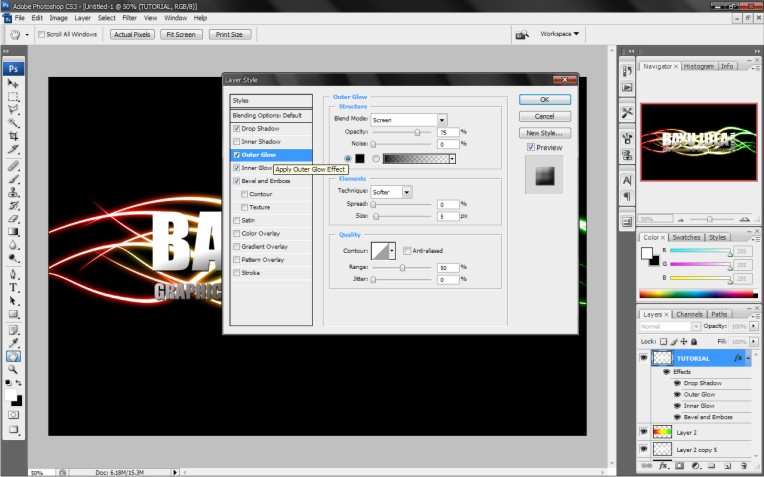


Next create a text using blanding effects option, follow the rules above.
(Selanjutnya membuat teks dengan menggunakan efek blanding option, ikutin aturan di atas).
STEP 9
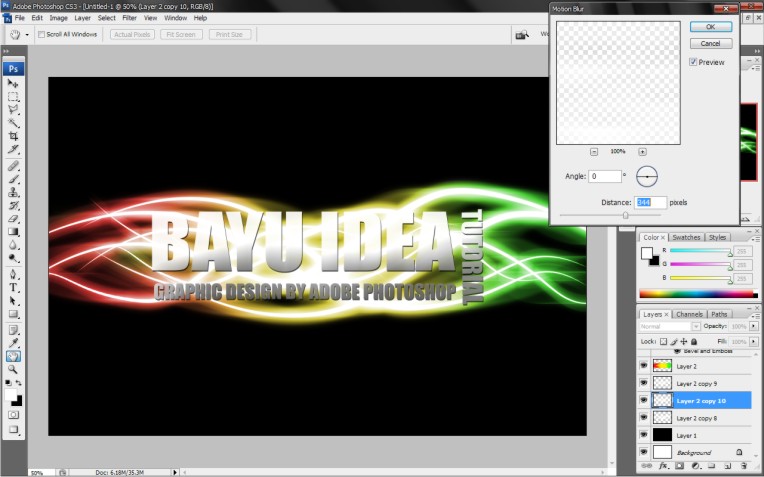
Copy layer spiral line we have made earlier, into three layers.
The top layer in Motion blur give effect, click the Filter-Blur-Motion Blur,
follow the settings as above, and the layer beneath the same, except the last layer spiral.
(Copy layer garis spiral yang telah kita buat tadi, menjadi tiga layer.
Layer paling atas di berikan efek Motion blur, klik Filter-Blur-Motion blur,
ikuti pengaturan seperti diatas, dan layer bawahnya sama, kecuali layer spiral terakhir).
STEP 10
Finally, combine all the layers, right click and select Marge visible.
(Terakhir, gabungkan semua layer, klik kanan dan pilih Marge visible).
Final Image
Senin, 10 Mei 2010
TUTORIAL GRAPHIC DESIGN WITH ADOBE PHOTOSHOP SNOW TEXT by BayuIdea
I created this tutorial for those of you who want or are interested in the letter that you own modifications, thus becomes interesting and nice to have in view, using the imagination you have, it’s one of my imagination, may become an interesting example for those of you Photoshop lovers, following his tutorial.
Final Image
STEP 1
Make a new layer with black color #000000
STEP 2
Make the text to your liking
STEP 3
Make a new layer, then draw a line under the text using the brush, the size of your liking.
STEP 4
Make a new layer, use brush starwalt_iciclebrushes.abr, as if going to make your text is filled with ice, put brus according to your liking, then combine all the layers,
by right click and select the layer visible.
STEP 5
Make a new layer then use the brush with black color (# 000000), using a brush 1.abr, use in accordance with your wishes.
STEP 6
Make a new layer, then use the brush Debris_Brush_Set_by_zigabooooo.abr
Use your brush as you wish.
Final Image
Langganan:
Komentar (Atom)