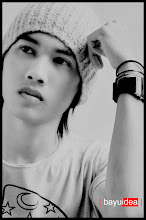
I made this image based on the original photo I was looking on google, by turning it into this kind may become more attractive.
And I made a short tutorial for you lovers of design, especially for those of you a beginner.
Good luck.
Final Image
Step 1
Open an image that will be edited.
Buka gambar yang akan di edit.
Step 2
Make a new layer, then use the Elliptical Marque Tool, For making a circle.
Then give the white color, then remove the center circle.
Buatlah layer baru, lalu gunakan Elliptical Marque Tool, Untuk membuat lingkaran.
Lalu beri warna putih, setelah itu hapus bagian tengah lingkaran.

Step 3
Then input new images, Delete parts of the excessive,
Put in the middle of the middle circle we have made previously.
Lalu masukan gambar tambahan, Hapus bagian yang berlebihan,
Letakan di tengah tengah lingkaranyang telah kita buat sebelumnya.
Step 4
additional images next input, then replace the normal screen.
masukan gambar tambahan berikutnya, lalu normal di ganti screen.

Final Image
Minggu, 30 Mei 2010
Photo Manipulation make the world in the grip of by BayuIdea
Making of Broken Glass Eye By BayuIdea
I made this image based on the original photo I was looking on google, by turning it into this kind may become more attractive.
And I made a short tutorial for you lovers of design, especially for those of you a beginner.
Good luck.
Final Image
Step 1
First of all open images to be edited,
then create a new layer and use a brush-Broken Glass, by using the color white.
and remove the excess brush.
Pertama tama buka gambar yang akan di edit,
lalu buat layer baru dan gunakan brush Broken-Glass, dengan menggunakan warna putih.
dan hapus bagian brush yang berlebihan.

Step 2
back to bageround, use the tool (Dodge tool),
to illuminate the facades that are in the circle of glass eyes
kembali ke bageround, gunakan tool ( Dodge tool ),
untuk menerangi bagian muka yang berada dalam lingkaran kaca mata.
Step 3
Enter Figure broken glass, then replaced with a screen to normal.
Masukan Gambar kaca pecah,Lalu normal di ganti dengan screen.

Step 4
Finally, a new layer above Make bageround image, use the brush Blood.
Terakhir, Buatlah layer baru di atas gambar bageround, gunakan brush Darah.
Final Image
Senin, 10 Mei 2010
TUTORIAL GRAPHIC DESIGN WITH ADOBE PHOTOSHOP SNOW TEXT by BayuIdea
I created this tutorial for those of you who want or are interested in the letter that you own modifications, thus becomes interesting and nice to have in view, using the imagination you have, it’s one of my imagination, may become an interesting example for those of you Photoshop lovers, following his tutorial.
Final Image
STEP 1
Make a new layer with black color #000000
STEP 2
Make the text to your liking
STEP 3
Make a new layer, then draw a line under the text using the brush, the size of your liking.
STEP 4
Make a new layer, use brush starwalt_iciclebrushes.abr, as if going to make your text is filled with ice, put brus according to your liking, then combine all the layers,
by right click and select the layer visible.
STEP 5
Make a new layer then use the brush with black color (# 000000), using a brush 1.abr, use in accordance with your wishes.
STEP 6
Make a new layer, then use the brush Debris_Brush_Set_by_zigabooooo.abr
Use your brush as you wish.
Final Image