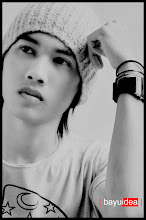
FINAL IMAGE
1.Open an image that will be edited
Open gambar yang akan di edit
2. Click ctrl + H, to set the Hue / Saturation
Klik ctrl+H, untuk mengatur Hue/Saturation
3. Then duplicate the layer, press ctrl + J
Lalu duplicate layer, tekan ctrl+J
4. Then use the Brush Tool, with Brush Crack_decay_peel_brush_sampler_by_FrozenStarRo
Kemudian gunakan Brush Tool, dengan Brush Crack_decay_peel_brush_sampler_by_FrozenStarRo
5. Then click the Filter + Redfield + Fractalius, to use the plug-ins fractalius, download it first.
Lalu klik Filter+Redfield+Fractalius, untuk menggunakan plug-in fractalius, download terlebih dahulu.

6. Remove part fractalius excessive or not in need.
Hapus bagian fractalius yang berlebihan atau tidak di perlukan.
7. Then combine the layers, right click + Marge down.
Kemudian gabungkan layer, klik kanan + marge down.
8. Use the Burn Tool, use the parts in desired.
Gunakan Burn Tool, gunakan di bagian yang di inginkan.
9. Then click the image + adjustment + brignes / contras, set as desired.
Lalu klik image+adjustment+brignes/contras, atur sesuai keinginan.
FINAL IMAGE
Sabtu, 14 Agustus 2010
PHOTO MANIPULATION GOTHIC SERIES
Minggu, 30 Mei 2010
Photo Manipulation make the world in the grip of by BayuIdea
I made this image based on the original photo I was looking on google, by turning it into this kind may become more attractive.
And I made a short tutorial for you lovers of design, especially for those of you a beginner.
Good luck.
Final Image
Step 1
Open an image that will be edited.
Buka gambar yang akan di edit.
Step 2
Make a new layer, then use the Elliptical Marque Tool, For making a circle.
Then give the white color, then remove the center circle.
Buatlah layer baru, lalu gunakan Elliptical Marque Tool, Untuk membuat lingkaran.
Lalu beri warna putih, setelah itu hapus bagian tengah lingkaran.

Step 3
Then input new images, Delete parts of the excessive,
Put in the middle of the middle circle we have made previously.
Lalu masukan gambar tambahan, Hapus bagian yang berlebihan,
Letakan di tengah tengah lingkaranyang telah kita buat sebelumnya.
Step 4
additional images next input, then replace the normal screen.
masukan gambar tambahan berikutnya, lalu normal di ganti screen.

Final Image
Making of Broken Glass Eye By BayuIdea
I made this image based on the original photo I was looking on google, by turning it into this kind may become more attractive.
And I made a short tutorial for you lovers of design, especially for those of you a beginner.
Good luck.
Final Image
Step 1
First of all open images to be edited,
then create a new layer and use a brush-Broken Glass, by using the color white.
and remove the excess brush.
Pertama tama buka gambar yang akan di edit,
lalu buat layer baru dan gunakan brush Broken-Glass, dengan menggunakan warna putih.
dan hapus bagian brush yang berlebihan.

Step 2
back to bageround, use the tool (Dodge tool),
to illuminate the facades that are in the circle of glass eyes
kembali ke bageround, gunakan tool ( Dodge tool ),
untuk menerangi bagian muka yang berada dalam lingkaran kaca mata.
Step 3
Enter Figure broken glass, then replaced with a screen to normal.
Masukan Gambar kaca pecah,Lalu normal di ganti dengan screen.

Step 4
Finally, a new layer above Make bageround image, use the brush Blood.
Terakhir, Buatlah layer baru di atas gambar bageround, gunakan brush Darah.
Final Image
Selasa, 18 Mei 2010
TUTORIAL GRAPHIC DESIGN FANTASY by BayuIdea
I created this design based on the original photo, which I edited to be interesting with the effects of fantasy, may I be an inspiration design for you.
see the tutorial
Final Image
Step 1
Create a new layer, Grab the beach pictures.
Buat new layer, Ambil gambar pantai.
Step 2
Enter the next drawing, then dispose of parts that are not in need
Masukan gambar berikutnya, lalu buang bagian yang tidak di perlukan
Step 3
Remove the bottom of the image as in the tutorial
Hapus bagian bawah gambar seperti pada tutorial
Step 4
Set the level on the beach image, select Image-Adjustment-Levels, make the settings as in the tutorial.
Set level pada gambar pantai, pilih Image-Adjusment-Level, lakukan pengaturan seperti pada tutorial.
Step 5
Set the level on the human image, select Image-Adjustment-Levels, make the settings as in the tutorial.
Set level pada gambar manusia, pilih Image-Adjusment-Level, lakukan pengaturan seperti pada tutorial.
Step 6
Make a new layer, use brush make impression of water for waves.
Buatlah layer baru, lalau gunakan brush air untuk memmbuat kesan ombak.
Step 7
Next create new layer, below the human image, use the brush the clouds, to get the impression cloudy.
Selanjutnya buat layer baru, di bawah gambar manusia, gunakan brush awan, untuk mendapatkan kesan mendung.
Step 8
Enter the large stone image, and remove parts that are not important.
Masukan gambar batu besar, dan hapus bagian yang tidak penting.
Ste 9
Remove the bottom of the stone. with a diameters large eraser and blur.
Hapus bagian bawah batu. dengan diameter penghapus besar dan rada blur.
Step 10
Set the color of the stone in order to get the harmony of colors, Ctrl + U, follow the settings as tutorial.
Atur warna batu agar mendapatkan keserasian warna, Ctrl + U, ikuti pengaturan sesuai tutorial.
Step 11
Adjust levels to get dark colors, Image - Adjustment - Levels, Follow the settings in the tutorial.
Atur level untuk mendapatkan warna gelap, Image - Adjustment - Level,Ikuti pengaturan pada tutorial.
Step 12
To use the color Brun tool. Put on the edge of the stone.
Untuk penyerasian warna gunakan brun tool. Goreskan pada bagian pinggir batu.
Step 13
Create a new layer, use brush nebula, to create the impression of smoke.
Buat layer baru, gunakan brush nebula, untuk membuat kesan asap.
Step 14
Next we will create a rain effect, create a new layer with black.
Then select Filter - noise - add noise, then select Filter - Blur - Motion Blur,
then select Image - Adjustment - Levels, match settings such as tutorials.
then change the Normal to Screen.
Selanjutnya kita akan membuat efek hujan, buatlah layer baru dengan warna hitam.
Lalu pilih Filter - Nois - add nois, kemudian pilih Filter - Blur - Motion Blur,
kemudian pilih Image - Adjustment - Level, samakan pengaturan seperti tutorial.
kemudian ubah Normal menjadi Screen.


Step 15
Next step, combine all the layers, right click on any layer, select Marge visible,
and set its level and Color Balance, adjust the settings in the tutorial.
Langkah selanjutnya, gabungkan semua layer, klik kanan pada sembarang layer, pilih Marge visible,
kemudian atur level dan Color Balance nya, sesuaikan pengaturan pada tutorial.


Final Image